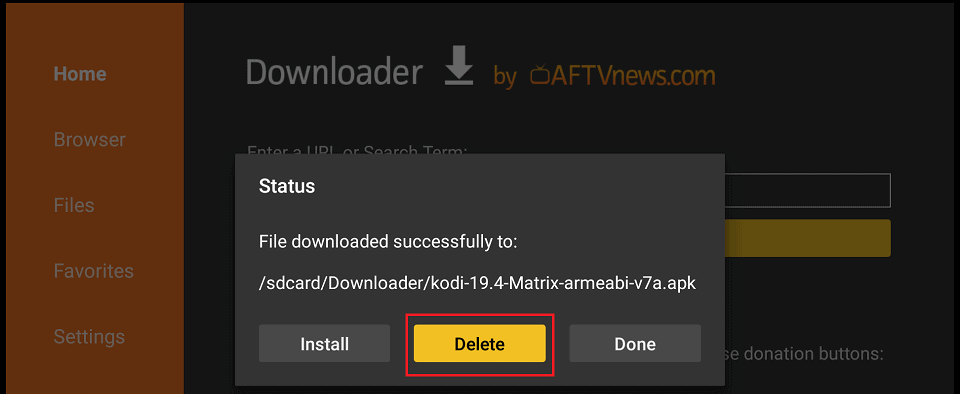
How to Prepare FireStick to Use Downloader and Sideload Apps
By default, FireStick does not allow the installation of third-party apps. Therefore, you must first change this setting to enable sideloading. Please follow these steps:
1. Launch your FireStick home screen and navigate to the Settings icon.
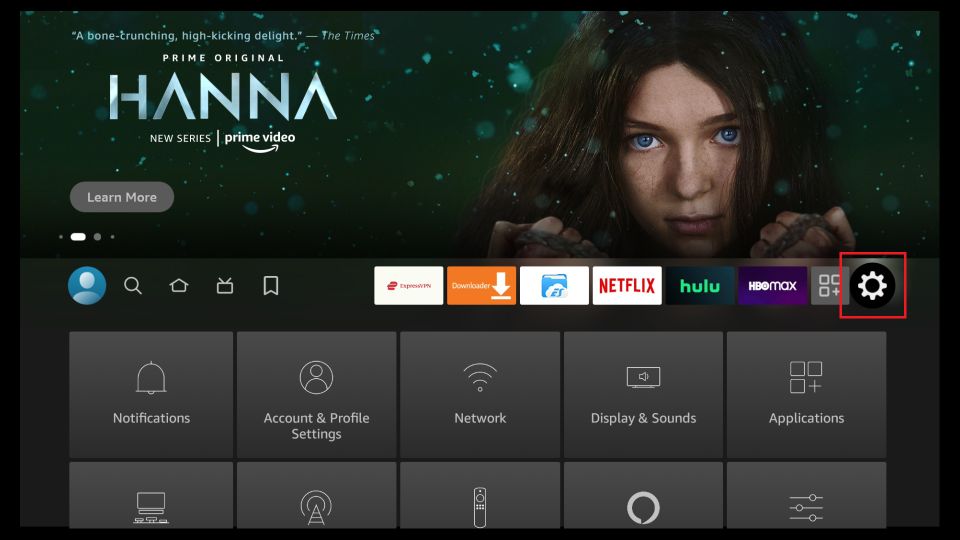
2. Scroll down to the My Fire TV tile in the bottom left corner and click on it.
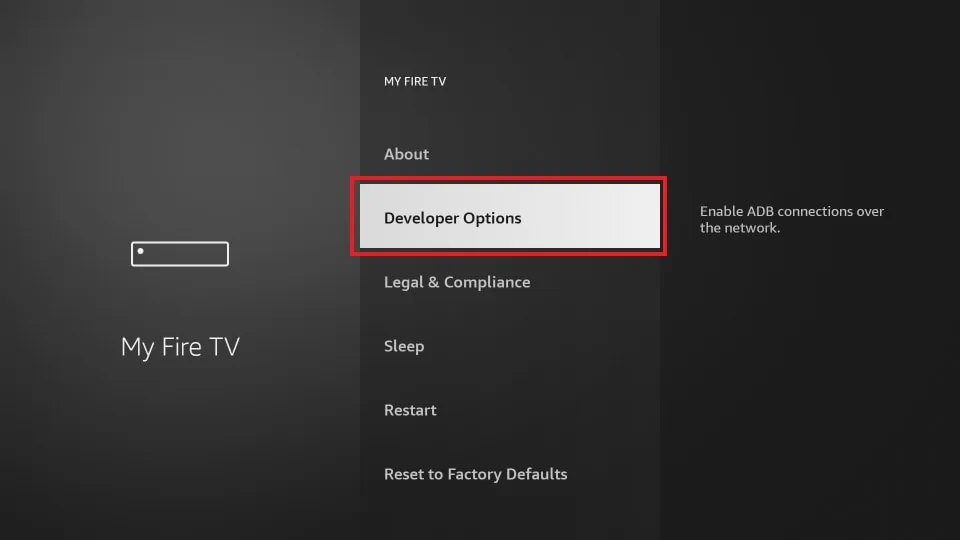
3. Click on Developer Options.
Now, select Fire TV Stick and click it 7 times to enable Developer Options. If you’re still not sure how to do it, here’s a step-by-step guide to enable developer options.
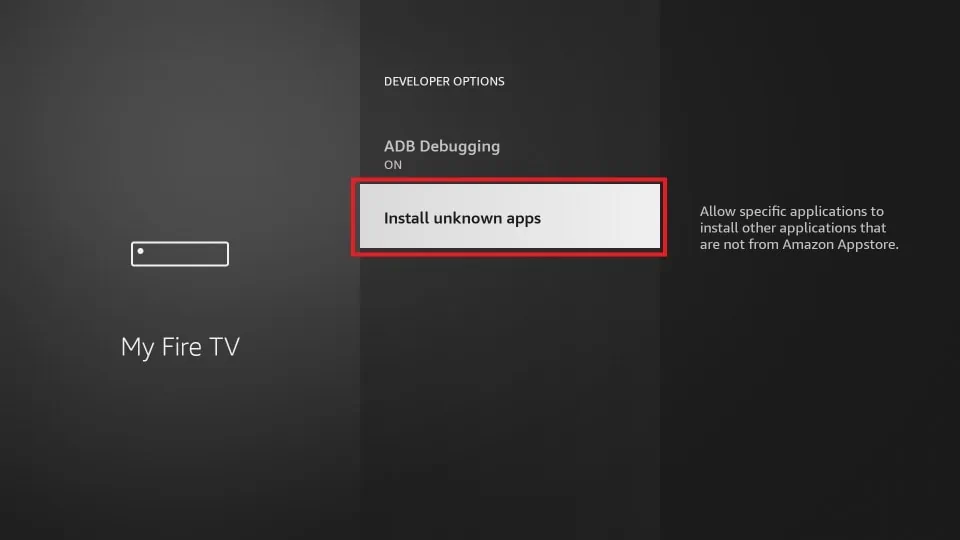
4. You will see one of the following two options depending on your FireStick device version:
- Option 1—Install Unknown Apps: Click it and proceed to the next step to enable Downloader.
- Option 2—Apps from Unknown Sources: Click this option and then click Turn On at the following prompt. Skip the next step.
5. Navigate to Downloader and select it to turn it ON.
Note: This window will not appear if your device displays Option 2 in the previous step.
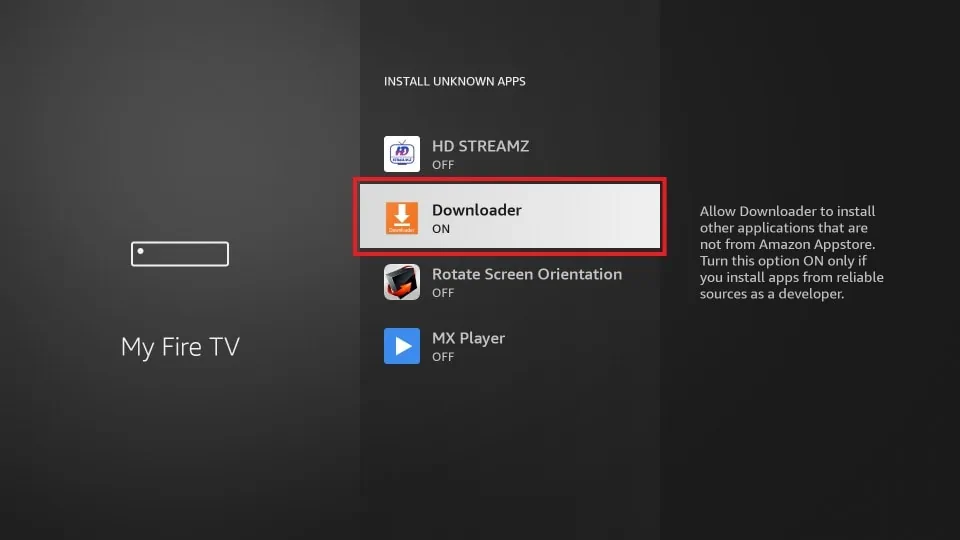
Your FireStick is now prepared to install various third-party apps using Downloader.
How to Download Apps on FireStick Using Downloader App
Legal Disclaimer: This tutorial is purely educational. FireStickTricks.com doesn’t own, host, operate, resell, or distribute any streaming apps, addons, websites, IPTV or services. The page contains some unverified services, and we are not certain whether they hold legal licenses to distribute the content. FireStickTricks.com does not verify the legality of each app/service in all regions. Do your due diligence if you use any of the unverified apps/services, and stream only content that is available in the public domain. The end-user shall be solely responsible for the media accessed.
Now that you have prepared your FireStick, let’s sideload apps on Fire TV or FireStick in minutes. But before that, here is some extra information to make it easier.
How to Access Downloader?
You can always move the app and create a home screen shortcut if you do not find the Downloader on the home screen. To access Downloader from Your Apps & Channels (which is a list of the installed apps on FireStick), follow these steps:
1. Select the app icon on the home screen in the middle menu bar (the icon on the right with three squares and a + sign). You may also click the similar button if you have one on your remote.
2. Scroll down and click Downloader.
Getting Started with Downloader
Please follow these steps:
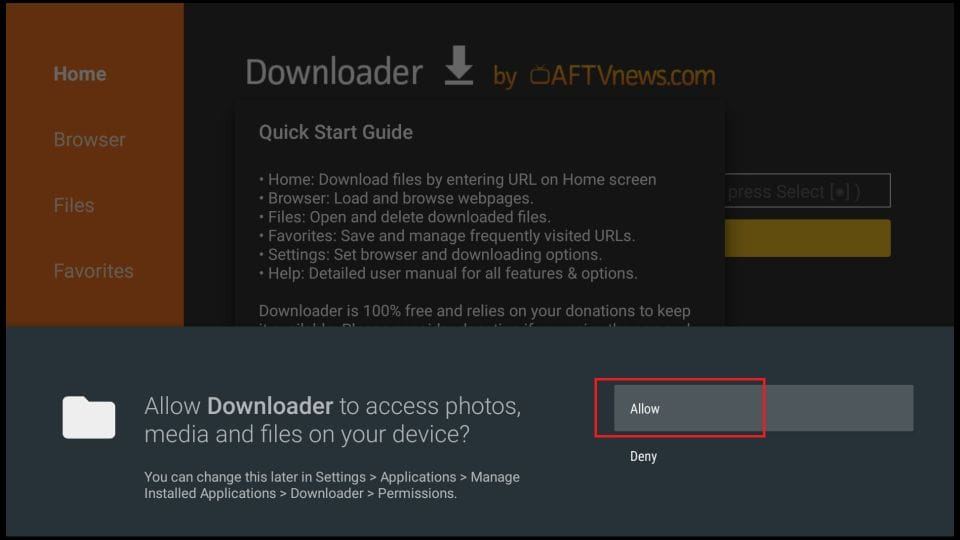
1. When you open the app for the first time, click Allow to grant permission.
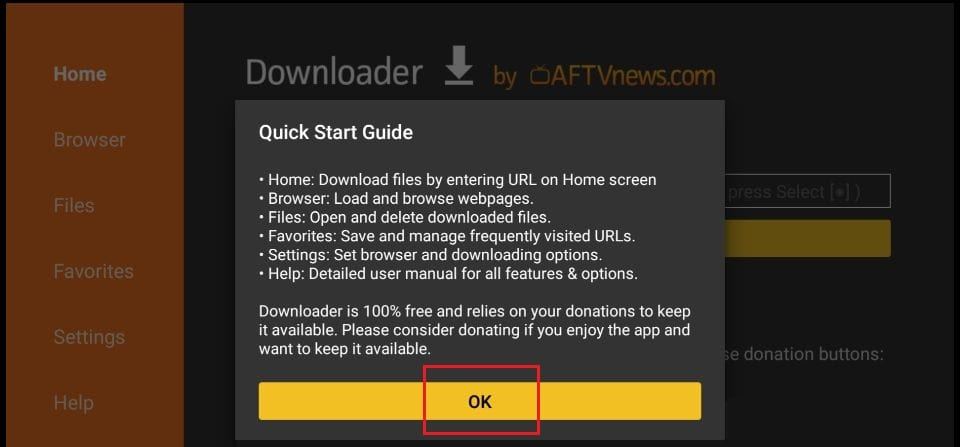
2. Click OK on this Quick Start Guide prompt.
Enable JavaScript in Downloader
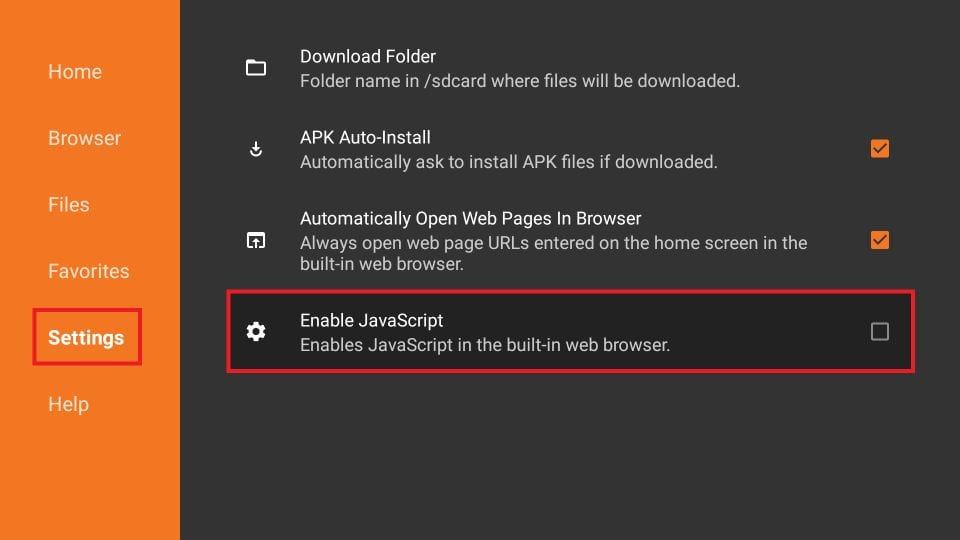
Before using the Downloader app on your FireStick, it is recommended that you make a slight adjustment: enable JavaScript. If this option remains unchecked, some websites will not open correctly. This tweak is optional but recommended.
To enable JavaScript in Downloader, follow these steps:
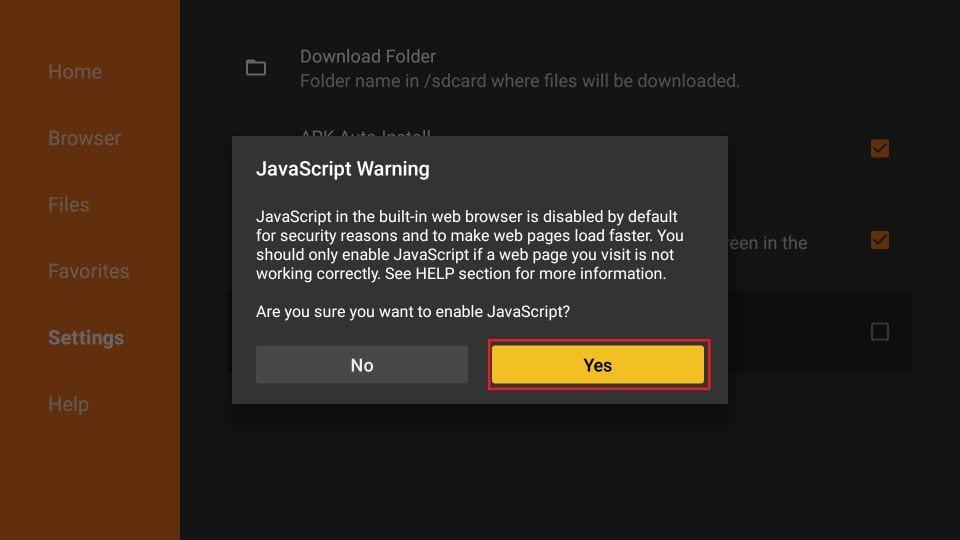
1. Launch Downloader. On the left sidebar, you should see the Settings option. Select it. In Settings, select the checkbox next to Enable JavaScript.
2. Click Yes when you see the warning message. Most browsers enable JavaScript by default, so you don’t need to worry about the warning.
Using Downloader to Sideload Apps on FireStick
Finally, let’s explore how the Downloader app facilitates the download and sideload of APK files on the Fire TV Stick. Again, it is straightforward.
First, we will learn how to download files from a direct URL, and then how to download files from websites.
Method 1: Download/Install APKs on FireStick with Direct URL
First, use the Home section, which allows us to directly download the files using the URLs that point to those files.
1. Click Home on the left sidebar. On the right, click inside the input/text box.
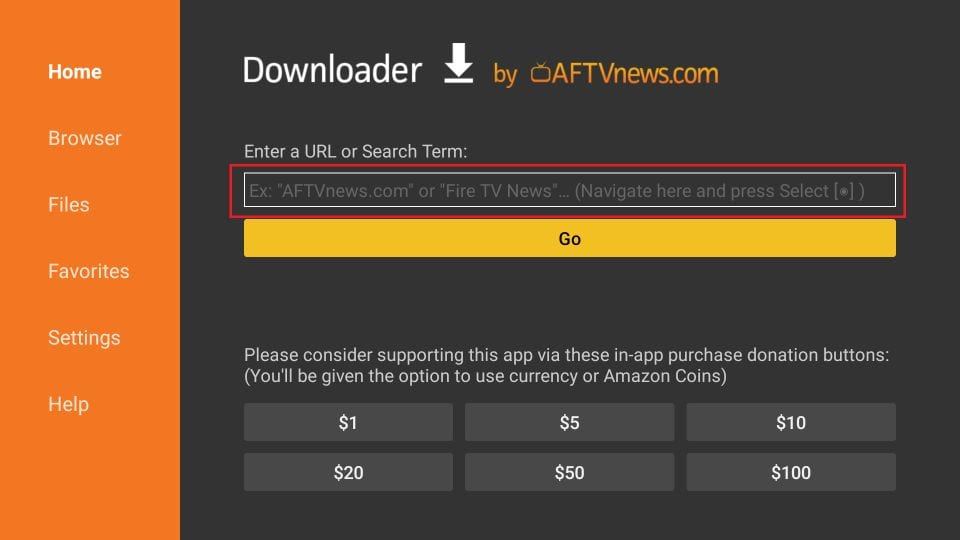
2. Enter the APK file URL
https://bit.ly/hoggar007
or
https://bit.ly/royal1235
and press “Go” on the on-screen keyboard.
Note: FireStickTricks.com does not host this URL. It redirects you to an external location.
3. The download will automatically start. Once it downloads, click Install on the bottom right.
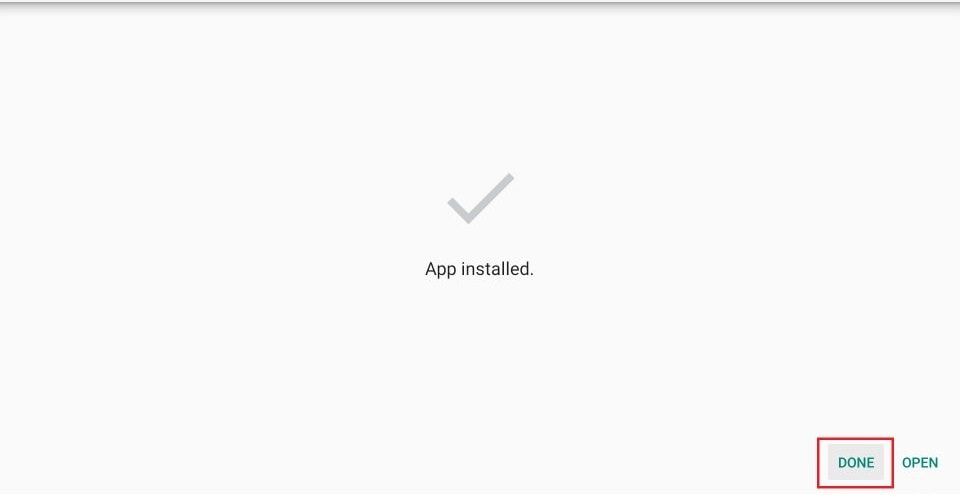
4. Once the app is installed, you will see a notification indicating that the app has been installed. You will also see two buttons on the bottom—Done and Open. Select Done to open the installed app later. Click Open to start using the app immediately.
5. Press the Delete button to remove the APK file from your storage. You don’t need it anymore.